RealSense 學習筆記/教學/分享(三):幀的控制

前面那篇在機器的控制端準備好了之後,接收到的資料要怎麼處理呢?

就讓我在這篇裡面介紹

主要本篇在於視覺化 用opencv為主

適用的範例是這個:
https://github.com/soarwing52/RealsensePython/blob/master/phase%201/read_bag.py

在上一篇的設定好了之後,就用可以看第一篇裡面的表格

poll_for_frames()
回傳配對好的畫面,沒有配對就回傳Null
只要加上
if not depth_frame or not color_frame:
continue
即可在Null時避免接下來的錯誤
wait_for_frames()
他會獲取一幀之後暫停串流,然後直到獲取下一幀
不過我使用結果之後,在深度跟RGB影像配對上出了問題
他會取上一幀跟下一幀 不過我每幀都隔10秒不能用
try_wait_for_frames
這個應該就是在wait_for_frames上面再多加一個等待的秒數
沒有實測過

基本上如果在讀檔的時候就會讀到重覆的幀
第一次第二次黃色 然後藍色 綠色 紅色這樣取
在當影片的時候完全沒問題,不過我當作相機的時候就不能這樣了
而且當我測量的時候,畫面A但是深度B對不起來根本量到的東西不一樣阿!
我是把深度跟畫面疊在一起,還有取到雙方的秒數來配對後發現的

timestamp
Frame number
Fream number
timestamp
402204.595
Depth243
Color 274
402204.221
403104.714
Depth 270
Color 301
403104.941
404171.521
Depth 302
Color306
403271.741
406038.434
Depth359
Color333
404172.461
407305.267
Depth 397
Color 389
406040.621
407338.605
Depth398
Color 427
407308.301
408038.697
Depth419
Color 449
408042.221
409238.855
Depth 455
Color 485
409243.181
409938.947
Depth476
Color 506
409943.741
410705.715
Depth 499
Color 529
410711.021

不過,先回到基本的視覺化處理
雖然彩色深度都用1280*720,還是會有些微不同,兩個鏡頭的畫面大小不太一樣,更何況彩色可以到1920*1080
所以要先把圖對在一起
在github討論串有人問為甚麼不自動對齊,主要原因由專案負責人Dordinic回答了
在做2D畫面的時候是把深度疊進彩色
但是在做3D模型 point cloud的時候就要把彩色疊到深度上面
所以交給使用者來決定(尤其這是一個開發者導向的產品)
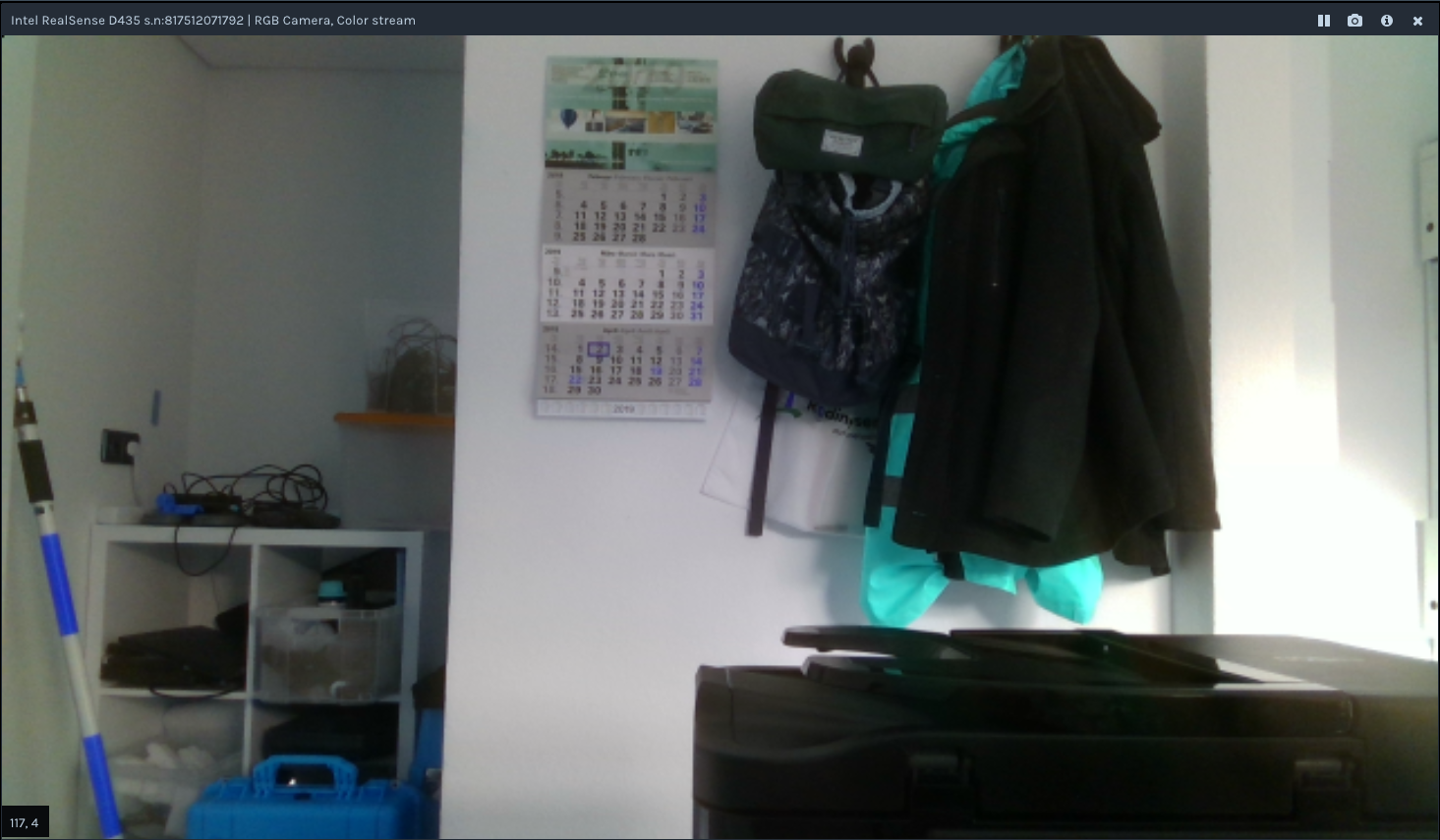
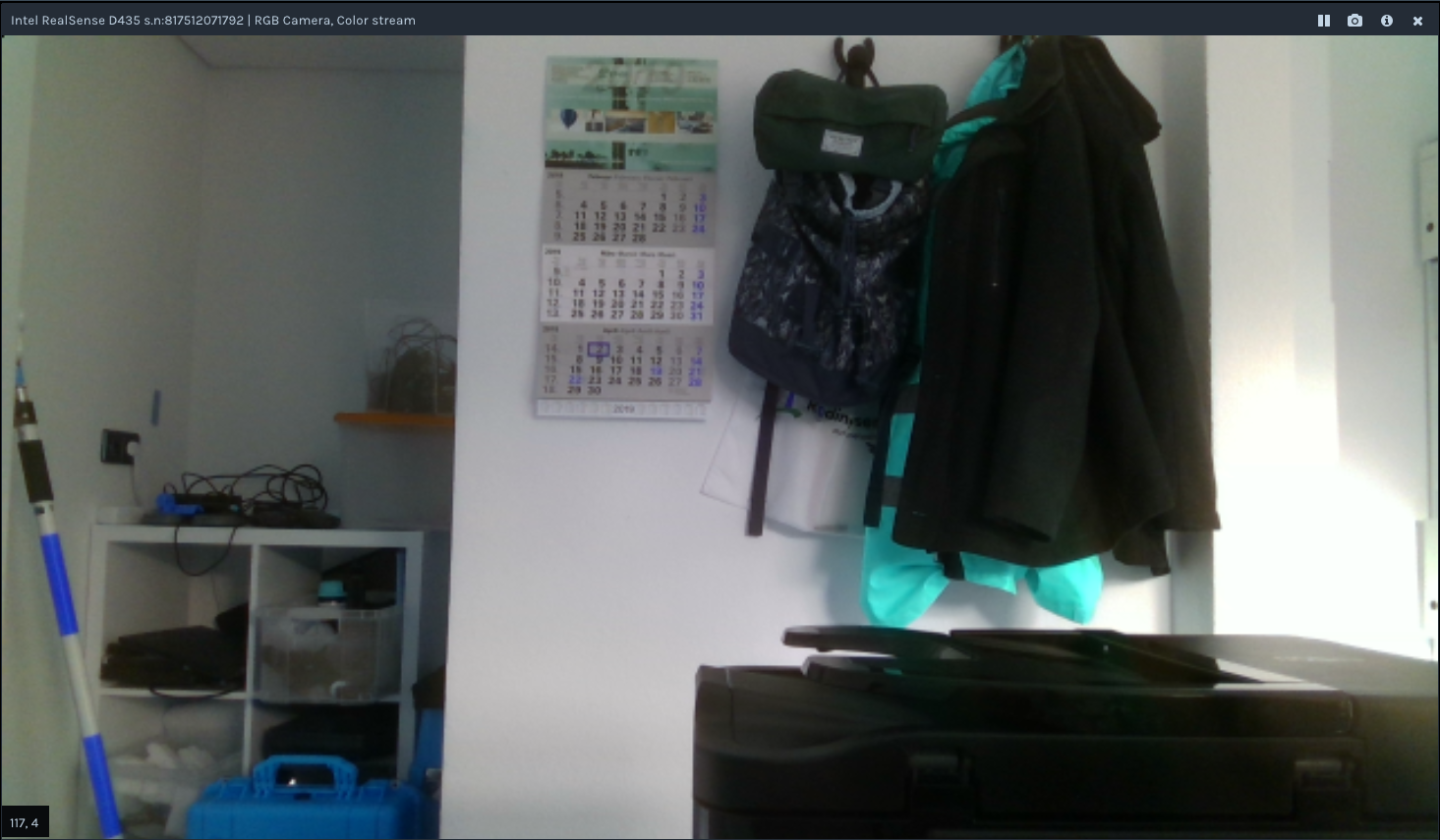
下圖為把兩個疊合在一起的畫面 深度1280*720 RGB1980*1080

align_to = rs.stream.color # or also depth
align = rs.align(align_to)
然後在while loop裡面
frames = pipeline.wait_for_frames()
aligned_frames = align.process(frames)
於是這樣幾行就可以疊出正確的圖作為接下來運算的標準
記得要在前面enable stream
獲取資料後,把他們轉成物件object
depth_frame = frame.get_depth_frame() 
color_frame = frame.get_color_frame()
有一個 rs.composite_frames()
我還不知道怎麼用
還有看到用 get_data().first_depth_sensor()
不同的方法,不過暫時我不需要所以就沒有深入也沒辦法深入了

濾鏡Fileters
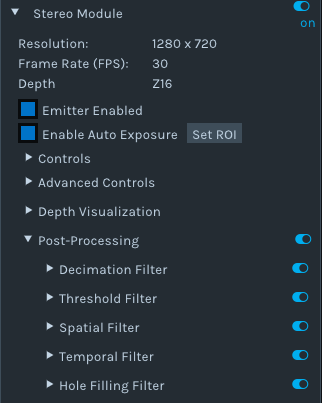
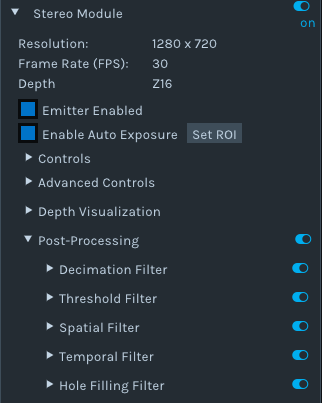
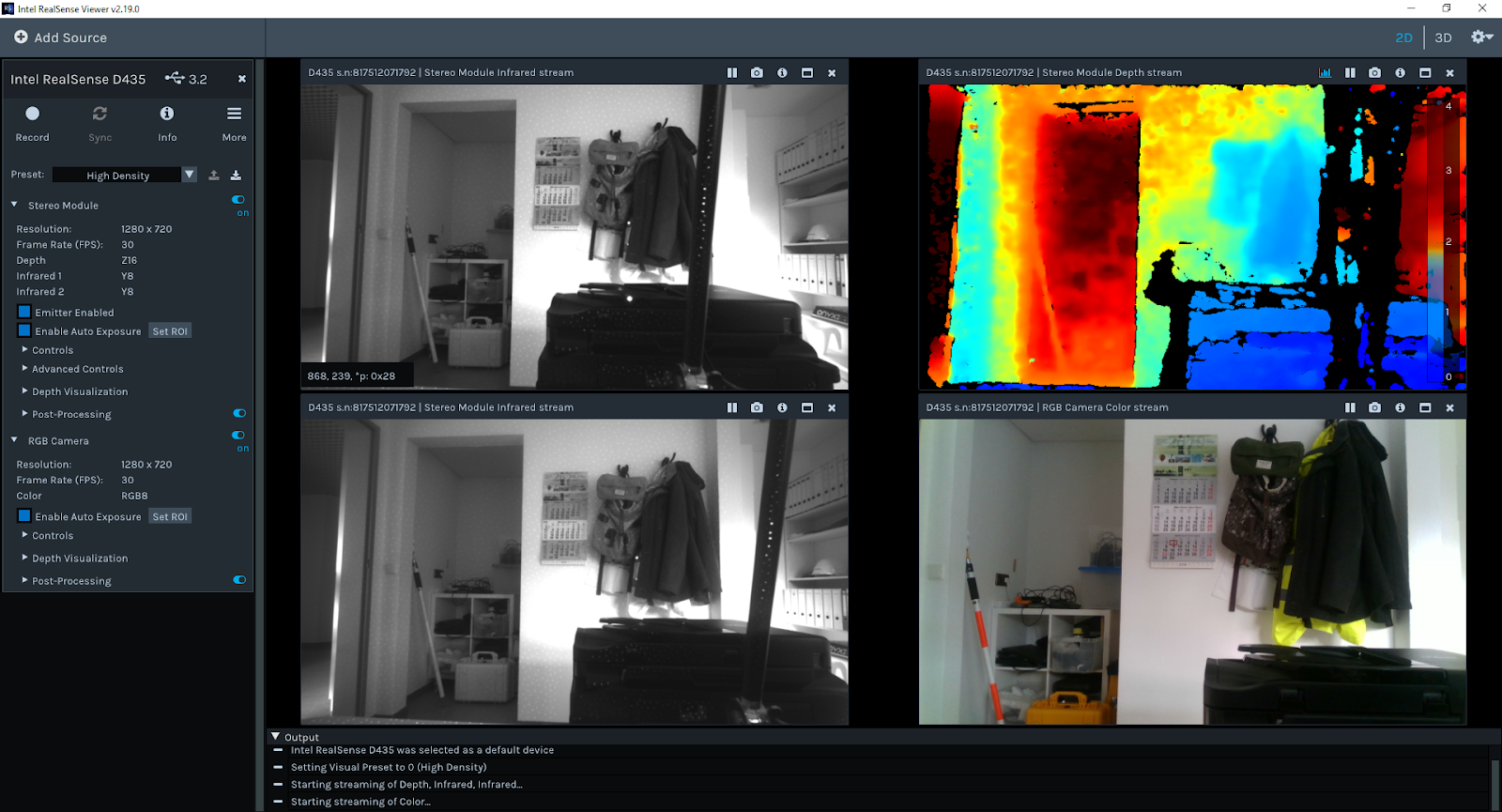
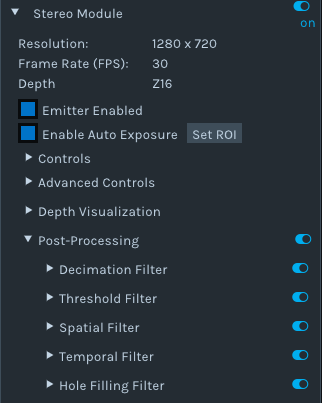
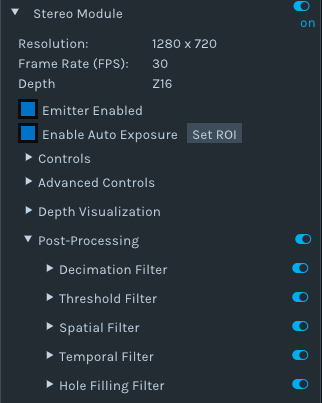
接下來就是之前在第一篇裡面提到的 post-processing
官方說明文件在這裡:

https://github.com/IntelRealSense/librealsense/blob/master/doc/post-processing-filters.md

對我最重要的是hole filling 把整個畫面都有數值
不過其實做到現在反而我都還沒有放,等到實地測量的資料更多再視情況
因為官方說這是一個很粗暴的填滿,反而會失準
總之,選項就跟viewer裡面看的到的一樣

dec = rs.decimation_filter(1)
to_dasparity = rs.disparity_transform(True)
dasparity_to = rs.disparity_transform(False)
spat = rs.spatial_filter()
spat.set_option(RS2_OPTION_HOLES_FILL, 5)
hole = rs.hole_filling_filter(2)
temp = rs.temporal_filter()

先在loop前定義好濾鏡
然後在裡面套用

depth = dec.process(depth_frame)
depth_dis = to_dasparity.process(depth)
depth_spat = spat.process(depth_dis)
depth_temp = temp.process(depth_spat)
depth_hole = hole.process(depth_temp)
depth_final = dasparity_to.process(depth_hole)

我的來源是這裡:
這是拿到相機後整整五個工作天我才逐漸掌握了怎麼轉譯從C++到python
開始把這個範例作為接下來開發的基底

接下來我的程式碼裡面就是一些幀的資料
var = rs.frame.get_frame_number(color_frame)
print ‘frame number: ‘+ str(var)
time_stamp = rs.frame.get_timestamp(color_frame)
time = datetime.now()
print ‘timestamp: ‘ + str(time_stamp)
domain = rs.frame.get_frame_timestamp_domain(color_frame)
print domain
meta = rs.frame.get_data(color_frame)
print ‘metadata: ‘ + str(meta)

視覺化
在python裡面的套件,適合用的就是opencv,在官方也是用這個

當然還有rosbag跟其他matlab等等,我主要用opencv後來用matplotlib作為尺規做圖
所以 前面提過 pip install opencv-python
然後import cv2
color_cvt = cv2.cvtColor(color_image,cv2.COLOR_RGB2BGR)    #convert color to correct
cv2.namedWindow(“Color Stream", cv2.WINDOW_AUTOSIZE)
cv2.imshow(“Color Stream",color_image)
cv2.imshow(“Depth Stream", depth_color_image)
    key = cv2.waitKey(1)
    # if pressed escape exit program
    if key == 27:
        cv2.destroyAllWindows()
        Break

我先前提過 BGR是opencv預設的打開模式,所以我錄製rgb要轉成bgr
然後設定視窗
waitKey是每個畫面幾毫秒
然後按esc的時候關閉
matplotlib更簡單

from matplotlib import pyplot as plt
plt.imshow(img)
plt.show()

這樣就可以顯示出圖片了
到這裡之後就可以看到畫面了
要做成影片就是範例裡面的
try:
  while True:
然後用wait for frames就可以拿到資料
然後再用opencv 每毫秒更新就是影片了
不過其實stream在跑的時候 不論有沒有wait for frame他都一直在傳資料了
這就是我這個專案的基礎了,接下來就可以開始計算3D距離了

RealSense 學習筆記/教學/分享(二):裝置控制

有些人問我 明明工作看起來也不錯 薪水 環境都不錯 為什麼我還在找?

先看看以下影片

這是去年的發表,當辦公室仍在用2000或是更久以前的方法 花許多時間/人力/眼力的同時

這樣的算法已經準備隨時取代掉這些工作了

你說我會不會怕? 當然會,所以要找能夠更未來性的工作 而不是在這樣養老的小鎮 已暫時的安穩而滿足,必須更向前啊!

繼續閱讀 “RealSense 學習筆記/教學/分享(二):裝置控制"

RealSense learning/turtorial/sharing blog – Chapter Two: More Device Adjustments

So, after the hello world, more controls over the device.

So the pipeline is basically start/stop, and wait_for_frames

And the function of pipeline_profile I haven’t know yet

in this part I will put in the controls before wait_for_frames,

including record file, read file, and others
First, complete the configuration:

Rs.config


enable_stream
Define the stream type and also width/height…
enable_all_streams
Turn on all streams at once
enable_device
Input “serial”
enable_device_from_file
(“filename”,True/False) for repeat_playback or not, either once to the end, or keep looping
enable_record_to_file
(“filename.bag”)
disable_stream
(“stream”,”index”)
disable_all_streams
resolve
can_resolve

the enable stream is mentions before,

config.enable_stream(rs.stream.depth, 640, 360, rs.format.z16, 30)

config.enable_stream(rs.stream.color, 640, 480, rs.format.bgr8, 30)

The options can be found in the Intel Realsense Viewer, color,depth,infrared, resolution, mode, fps.

and the  rest is more related when multiple devices were used
config.enable_record_to_file(file_name)
config.enable_from_device(filename)

these are when recording or reading
enable from device have the option True/False
allow replay or just loop once through all the frame and end
If False, it will be the Runtimeerror of “no frames arrived in 5000″
thats why I had the except in the try loop
——————————————————————————————————————–
device = profile.get_device()

depth_sensor = device.first_depth_sensor()

depth_sensor.set_option(rs.option.visual_preset, 4)

dev_range = depth_sensor.get_option_range(rs.option.visual_preset)

preset_name = depth_sensor.get_option_value_description(rs.option.visual_preset, 4)

https://github.com/IntelRealSense/librealsense/wiki/D400-Series-Visual-Presets#related-discussion

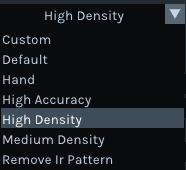
This part is setting the preset as in the Realsense Viewer, and in my need is the preset 4, high density.

The dorodnic of intel he wrote on loop to loop through the presets.


which he mentioned the preset numbers are changing all the time, I suppose its among other devices, at least in this same machine it stays

recorder = device.as_recorder()
pause = rs.recorder.pause(recorder)
playback = device.as_playback()
playback.set_real_time(False)
playback.pause()
playback.resume()

Recorder will start recording when in the configuration set,with function or .pause() and .resume()

And the next is playback

This is playing the recorded bag file


pause
Pause and resume, while resume it always turn really slow and lag, until it catch up with the frames
resume
file_name
I haven’t use these functions
get_position
get_duration
is_real_time
Set to the real time behavior as recorded time
set_real_time
Usually I set to set_real_time(False) so I can go through each frame to measure, or else the pipeline will keep the frames looping as real time behavior when its (True)
config.enable_record_to_file(file_name)
So I suppose it can open one bag and record this playback to a new file, while
rs.config.enable_device_from_file(config, ‘123.bag’)
Does Not enable the same time
config.enable_record_to_file(file_name)
current_status


Intrinsic/Extrinsic

depth_stream = profile.get_stream(rs.stream.depth)
inst = rs.video_stream_profile.intrinsics
#get intrinsics of the frames
depth_intrin = depth_frame.profile.as_video_stream_profile().intrinsics
color_intrin = color_frame.profile.as_video_stream_profile().intrinsics
depth_to_color_extrin = depth_frame.profile.get_extrinsics_to(color_frame.profile)

These are getting some data of the camera and streams, i use intrinsic to get the calibration while projecting pixels to 3D coordinations

Otherwise I have no other use for them yet, as I go through the files the usage would be more in 3D models also, while creating by scanning, the accuracy is a lot more important in smaller scales

——————————————————————————————————————
So this part is without example codes because it’s a more general usage for all files
which will be used in most further codes I will be demonstrating.
and I just got the use of turn off auto exposure today, will put it in in the future
the usage of turning it off is for not drop frames.
this is also one of my major issues 
I need to make it act as a camera, and every frame I took should be reachable
but the wait_for_frame is currently not giving me all the frames, and also not recording or recorded too much
if any pros saw this, please write in the comments or send me an email about this topic.
thank you!

RealSense 學習筆記/教學/分享 (一):Hello World

當然 所有程式的開始都是 Hello World

這個也不例外

第一個功能,就是開啟相機,然後偵測畫面中央的深度距離相機多遠

我的成果如下:

https://github.com/soarwing52/RealsensePython/blob/master/phase%201/Hello%20World.py
—————————————————————-

繼續閱讀 “RealSense 學習筆記/教學/分享 (一):Hello World"

RealSense 學習筆記/教學/分享-序篇:開始與安裝

因為工作的關係,老闆決定買了Intel D435的深度相機

然後就叫我做出他們未來可以測量照片裡面物體的大小

大概就是萊卡他們的產品那樣

我們公司做的是道路資料蒐集road survey

現在能看到的主要都是F200 跟一些比較舊的教學文,新一代D400 系列的比較少

所以就想來教學相長一下,希望看到這篇也能夠跟我一起交流
——————————————————————————————————
求助區
目前我卡關的有
rs.syncer
playback.seek
poll_for_frames
如果有看到的可以指導一下就拜託了!
——————————————————————————————————-

D400系列

我比較了D415/D435 基本上大同小異的深度相機,不過435有比較廣的視角

所以在我們的需求上選用的他

Rolling shutte/Global shutter是另外主要的差異

不過在我們的使用上是沒有影響的
——————————————————————————————————-
首先就是基礎安裝啦

開發者套件(SDK)

這款相機主要定位是給開發者/教學/研究用途,算是把未完成的產品拿出來賣然後由使用者開發?
不過畢竟是intel 這產品主要也是賣晶片 以供未來普及在筆電/汽車/遊戲機等

安裝完之後 打開viewer會說需要升級韌體

一樣按照連結,打開之後是個簡單的command line

先在2確定可以升級的裝置之後會到1,輸入完整連結即可

安裝完成之後裡面含有:
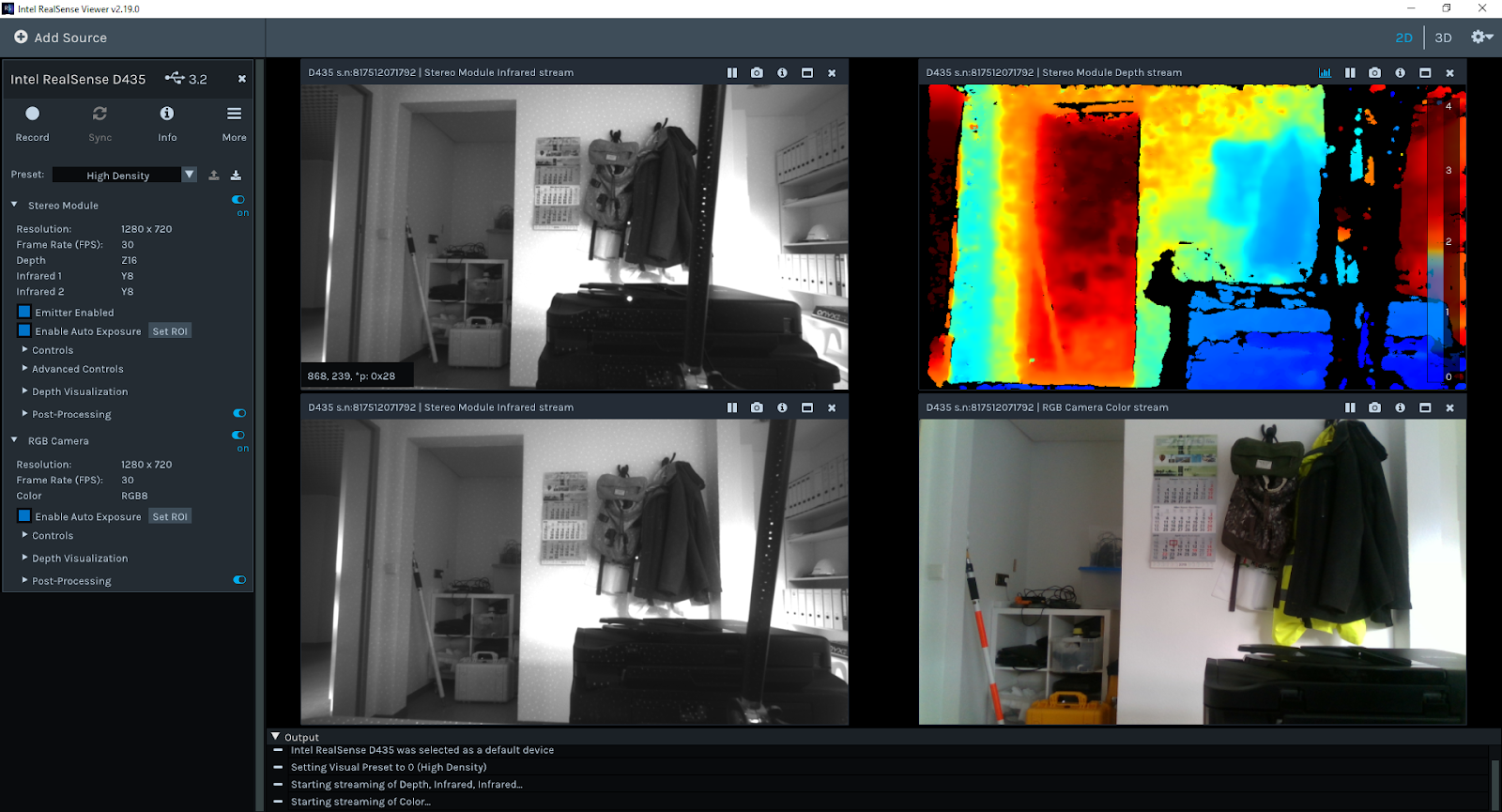
Intel® RealSense™ viewer:可以直接顯示RGB/深度 2D/3D影像 並且可以錄製
Depth quality tool:檢視深度影像
Debug tools:裝置的校正回報時候會用到的套件
Code samples:最一開始學習時候,就是這個Visual Studio示範開始的
Wrappers:支援C++以外的 C、Python、Node.js API、ROS、LabVIEW語言套件

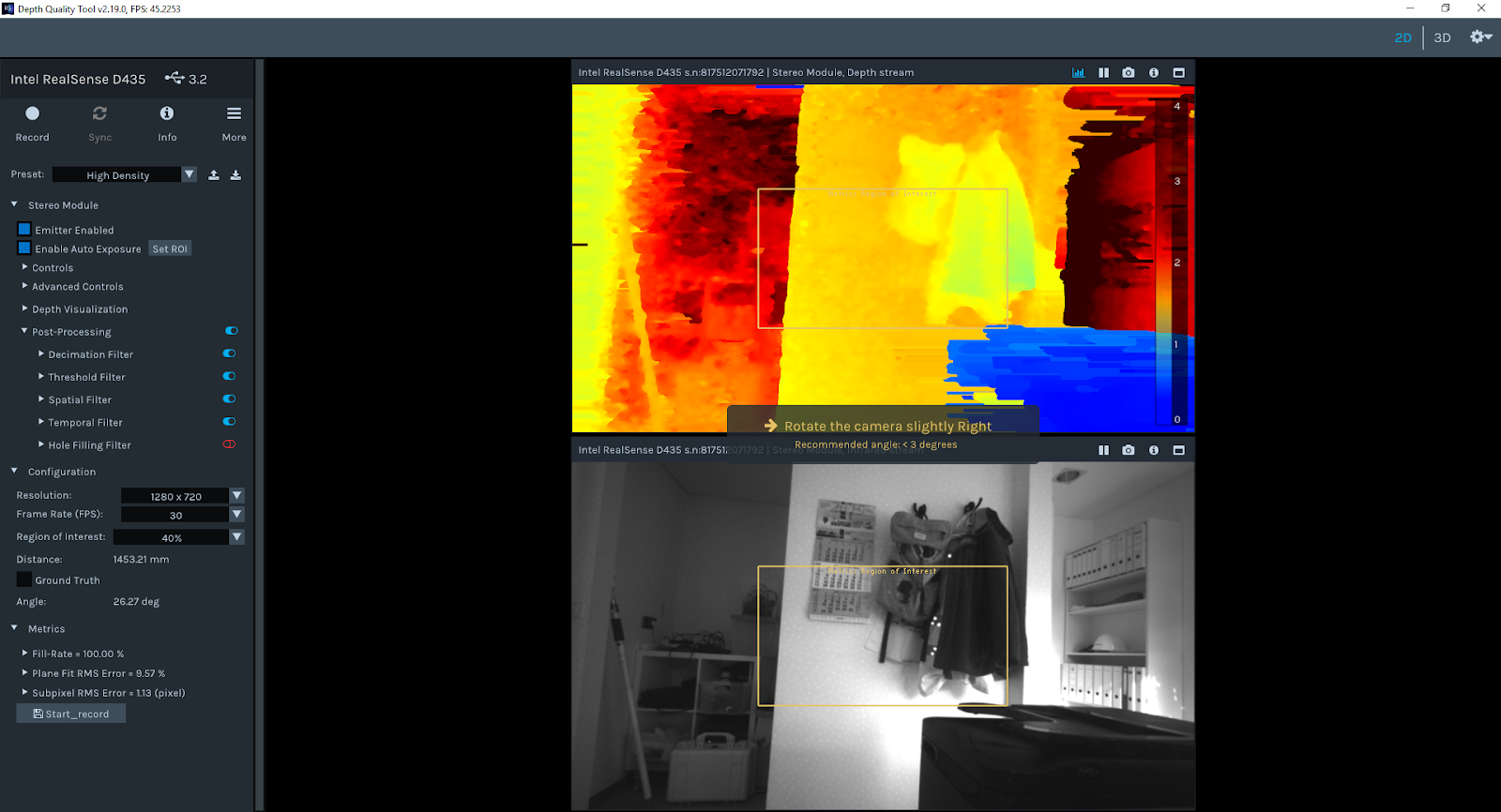
打開之後開啟所有的stream 影像 可以看到紅外線IR 可見光RGB 跟深度 depth

RGB相機的設定值有:

有灰階:

RGB

 BGR

深度相機

主要就是設定 preset還有後製post-processing

hole filling是我在這次主要會用到的功能

前後比較

除了這個 還有3D模式

一個角度當然不夠,是在做pointcloud 3D模型的時候用的

然後depth viewer我用起來 就像是只用深度的部分

其他功能看起來都一樣 就是沒有RGB

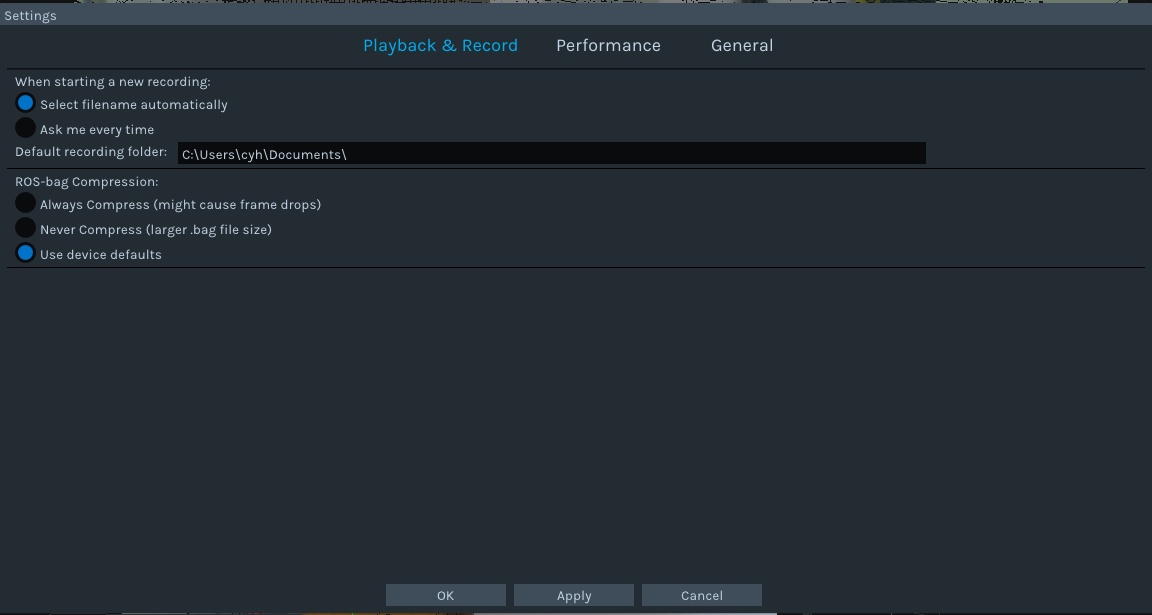
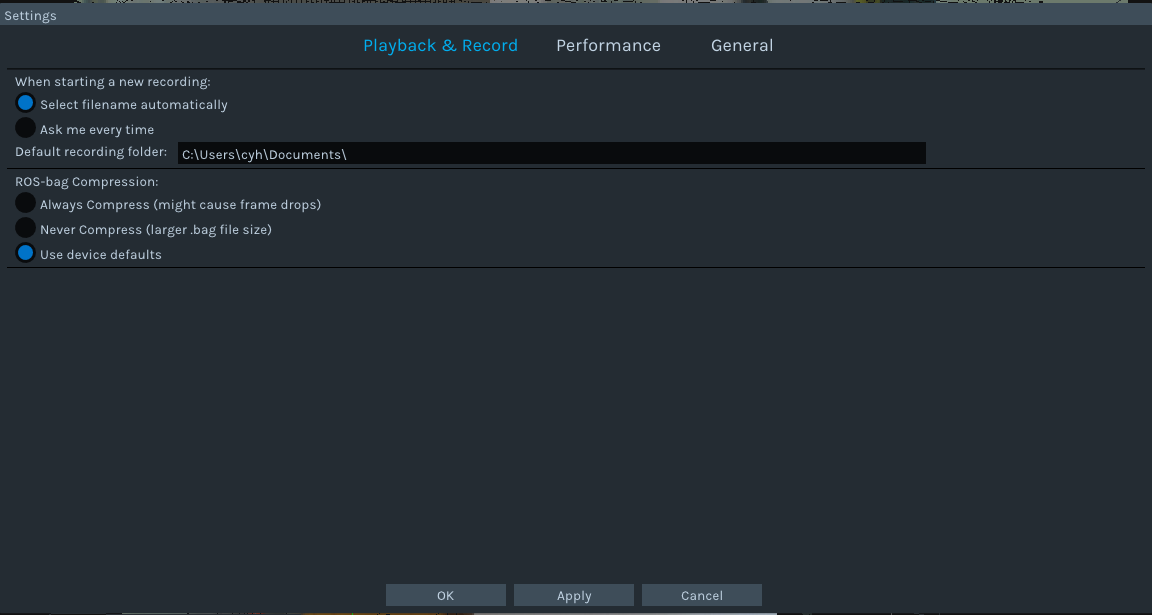
最後 錄製的成果可以選擇儲存在哪裡

————————————————————————————————————————
比較重要的幾個使用須知:
一定!一定一定!!!!!! 要使用USB3.0的接孔,才有足夠的頻寬可以把相機的影像傳到電腦裡面

相機本身就是一個感測器 除了鏡頭接收之外,還有小部分的硬體同步與修正,其他都回傳到電腦裡面做處理

因此,在線材的選用也必須要找usb typeC 然後也是3.1的USB線才可以用,也有一些因為太長而導致了資料傳輸失敗
最常出現的就是frame drop 當頻寬不足的時候 30fps錄下來的可能會有許多幀數遺失

還有一個我看到的問題,就是快速抽差

在使用的時候如果把線慢慢滑進去,可能就會偵測為USB2.0 所以務必一鼓作氣 直搗黃蓉

———————————————————————————————————————–
序就寫了開始的一些步驟 還沒開始到程式碼的部分

基本上安裝沒什麼問題,唯一在公司就是因為管理員權限鎖住,所以一路請主管過來輸入

直到韌體升級已經花了半天,從早上十點到下午兩點了

後來我問能不能調整權限,於是獲得了"新的"工作用電腦

ram 4G 2014年的lenovo電腦 沒有SSD

說這台完全沒有任何權限問題 你就拿去用吧!

RealSense learning/turtorial/sharing blog – Chapter One:The Start, Install and Hello World

It’s been one month I’ve been working on this Intel realsense D435, and still I’m not so sure with a lot of functions and some parameters. Like when to add () and when not, which function need which

parameter to fit in. First I read the

https://buildmedia.readthedocs.org/media/pdf/pyrealsense/dev/pyrealsense.pdf

And the python.cpp in the python wrapper to find the options Actually it didn’t help much, mainly I started with the examples in python wrapper and then read the corresponding codes in the C++ example. It is also because this project is to measure objects in the picture, and in the example there is already one measuring in stream, so translating that code is the first approach. And here

https://pyrealsense.readthedocs.io/en/master/index.html

The starting part of the camera:

With the Intel Realsense Viewer we can get all the possible control options

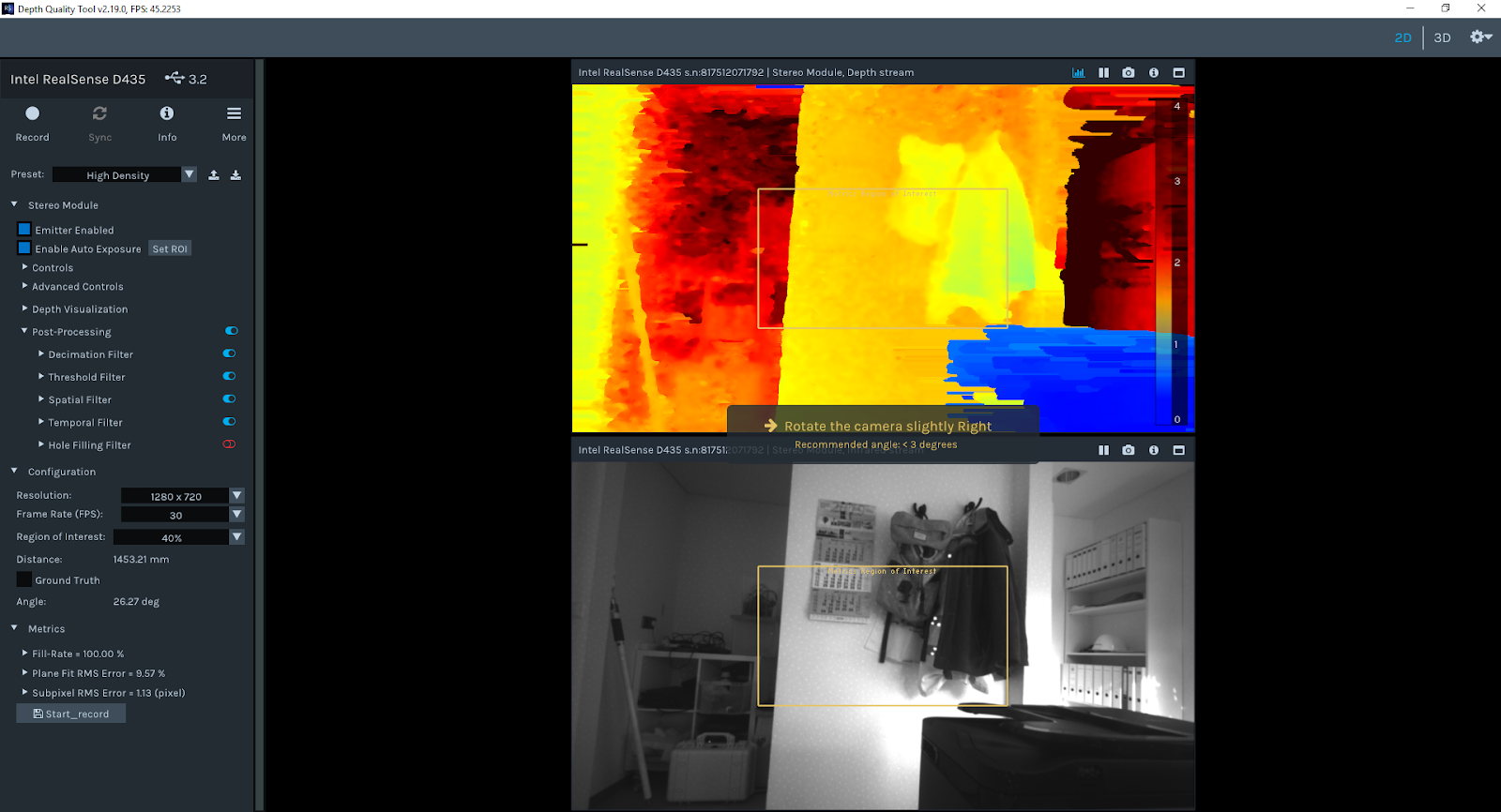
the picture of IR/Depth/RGB stream

For RGB the highest resolution can be up to 1920*1080
auto exposure sometimes is turned off to reduce frame drop

In my measuring usage I will be using the High density to get the most pixels covered
while determine movement or object can use high accuracy
and the presets can be also set manually

one important feature for me is the hole filling, to get the most of the measurements this algorithm is a way to fill the frame 
before

after 

it can already record and choose the save directory

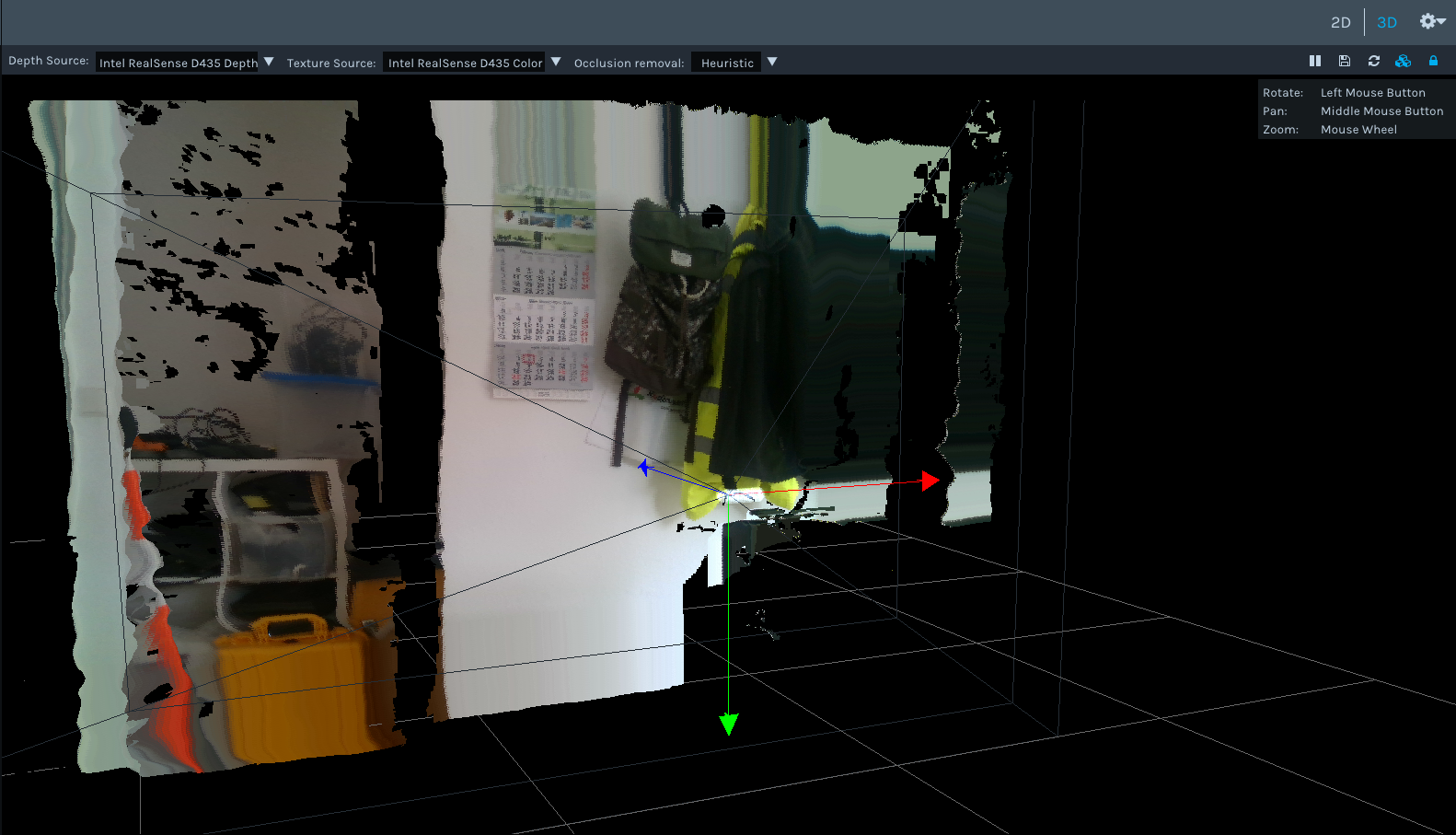
the view also come in 3D, for the usage of point cloud

least but not the last, the depth viewer, currently I havent been using it, since its like the viewer without the color stream control.

Setting of the environment

Pip install pyrealsense2

This is the current easiest way to install it, while the other method is through CMake which I never tested

Other plugins needed will be: numpy, opencv-python, matplotlib

Also can be done with pip install

————————————————————————————————————————

So start scripting:

My first example is to rewrite the Hello World into python

https://github.com/soarwing52/RealsensePython/blob/master/phase%201/Hello%20World.py

Import pyrealsense2 as rs

This is the library import line for realsense, in all further scripts it will be all in this form

The pipeline:

For video processing all the instructions are in a pipeline, so start it and combine the next moves.

Pipeline = rs.pipeline()

pipeline.start()

And then the configurations of the pipeline:

config = rs.config()

config.enable_stream()

This sets up streams of frames which not only when using camera but also when reading from bag files, mainly I use for alignment of frames, other I still haven’t found the function for it

Parameters:

(stream type,resolution, image format, fps)

Example:

config.enable_stream(rs.stream.depth, 640, 360, rs.format.z16, 30)

config.enable_stream(rs.stream.color, 640, 480, rs.format.bgr8, 30)

The possible can be found in the Intel Realsense Viewer, color,depth,infrared.

One thing I found interesting is that when it in default is the bgr format

in Intel Viewer it shows bgr in rgb, which means where red is blue and the colors are not correct to human eye.

So when I record as rgb8/rgba8, and view in opencv-python, it shows also again wrong, shows rgb in bgr format.

and when I use matplotlib, it showed rgb as default view.

so I need to add one cv2.convert if I want to show RGB image correctly in opencv window.

It is not a big problem just one interesting phenomenon

https://www.learnopencv.com/why-does-opencv-use-bgr-color-format/

RGB/Y16/BGR

In order to get the frames one after one, perform as a stream/video, a try and a while loop is required

Try:

while True:

Except Runtimeerror:

No frames came or ended

Finally:

pipeline.stop()

So for getting the frames

frame = pipeline.wait_for_frames()

depth_frame = frame.get_depth_frame()

color_frame = frame.get_color_frame()

This is quite straightforward

The get frame options for pipeline are:

poll_for_frames()

Get frames immediately

Somehow I can’t make it work, it just always reply no frames coming until the end

wait_for_frames()

It will block the stream until the next stream came, this caused a matching problem which I will describe later when I tested measuring

try_wait_for_frames

I haven’t really get to know this one yet

This is also same options for the syncer, but as I wrote before, I can’t get the syncer to function yet.

For frame queue there are more options

rs.frame_queue()

This will put the frames first in memory and then process and save, if there’s a lot of frames while streaming, this is the method to prevent drop frames since it saves the frame data first.

In this project I didn’t need this function, just came across it while searching

So back to the Hello World sample.

width = depth_frame.get_width()

height = depth_frame.get_height()

dist = depth_frame.get_distance(width / 2, height / 2)

This is getting attribute from frames

The options are

get_width

get_height

get_stride_in_bytes

get_bits_per_pixel

get_bytes_per_pixel

And for the metadata of the frames:

var = rs.frame.get_frame_number(color_frame)

print ‘frame number: ‘+ str(var)

time_stamp = rs.frame.get_timestamp(color_frame)

time = datetime.now()

print ‘timestamp: ‘ + str(time_stamp)

domain = rs.frame.get_frame_timestamp_domain(color_frame)

print domain

meta = rs.frame.get_data(color_frame)

print ‘metadata: ‘ + str(meta)

Frame number, timestamp are the ones I used, others I haven’t get my hands on yet

The get_distance is only for depth_frames while the others apply to all other frames.

So this can get the basic distance. But for accuracy, even though it shows the number up to 76,

The detecting distance of D435 is 10 meters, and for my test, it’s accurate within 5-6m up to +-10cm on measuring objects

key = cv2.waitKey(1)

This is window controlling, with 1 means 1ms the window will show, and 0 means forever

if key & 0xFF == ord(‘q’) or key == 27:

Break

This means when esc/q is pressed, exit the while loop, and proceed to next frame because there is a try outside of the while loop.