Roadmap: Real Sense Application

The RealSense application is a solo project combined many different components I created during my job in the road surveying company

As the idea of the project is to let colleagues can measure objects such as road width, sidewalk, and even cracks.

Since the implementation can’t simply program through it, this project has:

Hardware selection, Computer Vision, Location Service, Depth Camera Library, GUI visualization

Further development with

ArcGIS/QGIS plugin creation, Flask web-framework

繼續閱讀 “Roadmap: Real Sense Application"

The RealSense application is a solo project combined many different components I created during my job in the road surveying company

As the idea of the project is to let colleagues can measure objects such as road width, sidewalk, and even cracks.

Since the implementation can’t simply program through it, this project has:

Hardware selection, Computer Vision, Location Service, Depth Camera Library, GUI visualization

Further development with

ArcGIS/QGIS plugin creation, Flask web-framework

繼續閱讀 “Roadmap: Real Sense Application"

Raspberry Pi + Realsense: MIT App Inventor

So when I found this, this is my savior

with no knowledge of JAVA I thought an app is impossible

but I found this youtube video

this showed that with Request of Simple HTTP server and GET request I can connect them

So he’s the inspiration of the whole project, thanks ADEL KASSAH!! 繼續閱讀 “Raspberry Pi + Realsense: MIT App Inventor"

Raspberry Pi + Realsense: Flask server

I would start first with the easy part, Flask

Flask is a micro framework to set up at server, app

and without setup like the whole Django file structure framework.

The good part is the variable they use is quite similar, because template of jinja2 and django is very similar

the code: https://github.com/soarwing52/Remote-Realsense/blob/master/flask_server.py 繼續閱讀 “Raspberry Pi + Realsense: Flask server"

Project introduction: Tablet control Raspberry Pi with Realsense Depth Camera

The whole Realsense D435 project started long ago, I was working with it the whole year actually, and I have more records

I started on my working laptop, then need to run it on old road survey laptop, which is a lot weaker
and with a long usb cable connecting from the laptop on the side seat to the camera set on the front top of the car, it is just not as satisfying.
As the new pi has usb3 port, this is a good choice to update the things a bit.
the final result is on Github

Hardware Components

Raspberry pi 4 4GB
Realsense D435
GPS reciever (BU353S4 in my case)
(I’m still working on how to set it up together properly)
Since the goal is to use a tablet control pi remotely without cables and a laptop sitting on the side seat, some key are required
1: the connection: after asking and googling, I started with tcp sockets, and end up with Flask REST API
2:Android App: at first I though I might have to program in Java for this app for the sockets, luckily I got away with it with Flask and the MIT App Inventor this is a website to create apps with block code languages.
3.Since it can be used as HTML, how to stream the video? MJPEG is the answer I found, for streaming IP camera was the keyword
The rest I can easily work with my scripts and my python skills
————————————————————————————————————————

The Interface

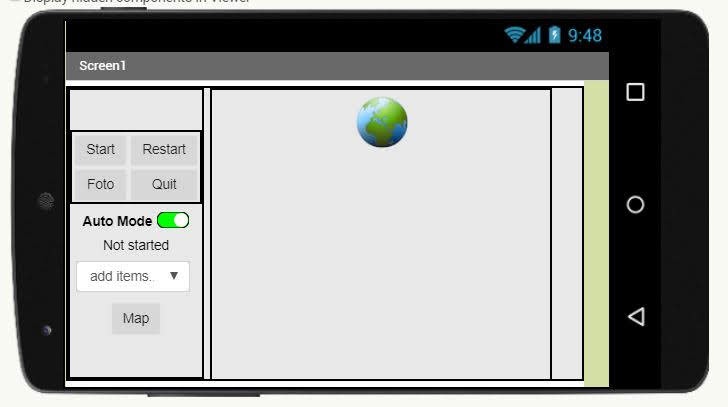
this is made with the website MIT App inventor, the start will initialize the whole threads
restart is to separate every street while surveying, because one street can be on file
Auto mode will take every 15 meters one shot, instead of manually doing it
Drop list is to set the distance, not neccesarry to be 15 meters
the map opens in another page, but currently the GPS locator and how to show more informations are too complicated, still working
————————————————————————————————————————-

The Structure

The front end will easily send GET to the Flask app, and I just define functions, just as simple as any GUI
such as:
@app.route('/auto/')
def auto(in_text):
a.command = in_text
return in_text

in this part I used dynamic link, so I don’t need to create tons of functions

I have index, video feed, commands, auto mode, photo distance five kinds
index is a template I tested on desktop, in the end not used
commands include start, restart, take a photo, and quit, falls in the decision loop
start will initialize, check if gps and camera is off, and then turn it on, or else just refresh the view
restart will end the camera thread and open a new one by setting mp.Value from 1 to 99 (0 is rest, 1 for running, 99 for quit)
photo will first send True to the checking loop, check location is not duplicated and then send 1 to camera, after camera taken a picture will send 2 back, with log file written back to 0
auto mode is for the switch on the app, will send true/ false to the flask
drop list will send 15/25/30( still can be determined) to the camera setting script
———————————————————————————————————————–
So some things I learned in the project:
Flask:
before I did django, and while googling I found easy example with opencv + flask to stream ip cameras
mjpeg is simply read image in bytes, while in Python every thing is an object.
Socket:
socket is tcp connection in the python library, though in the end I didn’t use it, but it was a try
when sending image will first pickle the image and the size of the image
while once can only send certain bytes, to avoid corrupted data, the struct pack is needed
the codes can be seen here
Transferring from local to flask app took me some adjustment on the controls of commands between processes, and monitoring cpu usage for the little cpu of pi. It still lags a bit but its the best I can get from pi
———————————————————————————————————————–
temporary result

Raspberry Pi – start without HDMI adapter

So, after the “mind blowing" fair we went in Stuttgart, we started to push something new

The thing is what I’ve been saying for a long time: Raspberry Pi 4

As currently the adapter is not here yet, I tried to start without it connecting to hdmi directly

I did some research and found a lot of methods, wireless method hasn’t succeed

So, what I did on my first day of Raspberry Pi

Install Rasbian

though the distributor has put a NOOB in the SD card which came with the pi, I decided to try from step one on another SD card

So go download Raspbian at https://www.raspberrypi.org/downloads/raspbian/
I use the one with recommended software, for more conveniency

and I saw either people use Rufus or Etcher to install, I used Rufus while I was installing Ubuntu, so I tried Etcher this time.

It is quite intuitive, just get the .zip I just downloaded, and then it will almost autmoatically find the SD card available for install, then just flash it!

After flashing, the system is ready, if there is a micro-HDMI to HDMI adapter, it  can be straight connected to screen, mouse, and keyboard.

Connect to PC

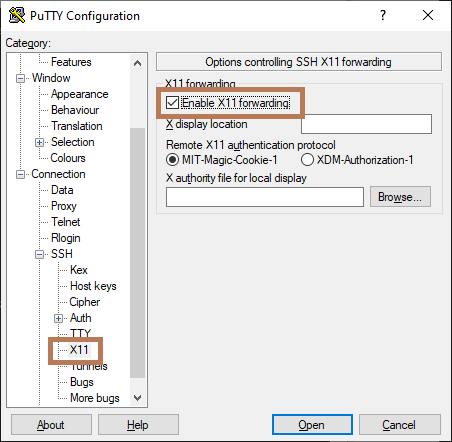
So two softwares are required for this step: PUTTY and Xming

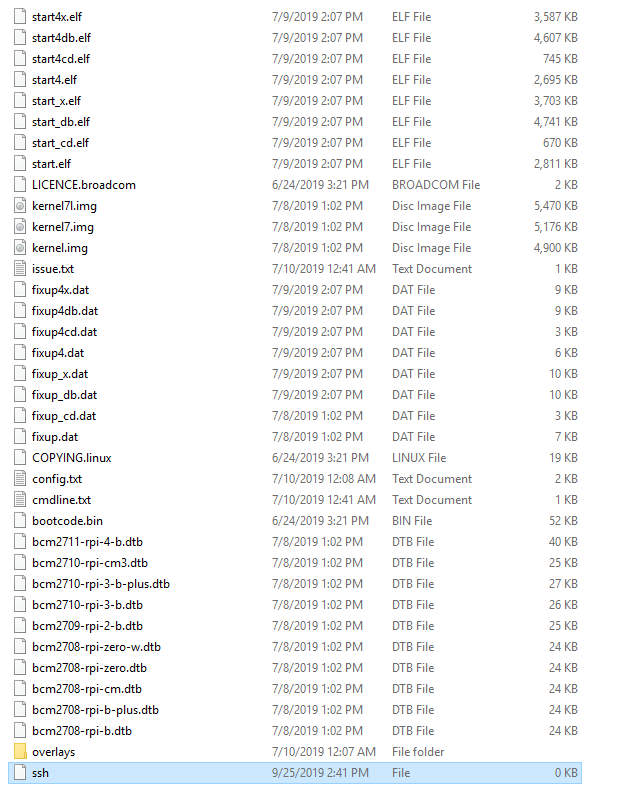
in the SD card first create a new file called ssh without any extentions

the first step can test if it is working

connect Pi to PC with Ethernet cable, and then use call the command line

type in ipconfig /all to get all the connected port

our Pi will be at Ethernet adapter Ethernet, ip will be shown at Autoconfiguration IPv4 Address

FYI. the PCs connected to this PC will be always be in 169.254.xxx.xxx

then go back and turn off Raspberry Pi, open the cmdline.txt in the SD card

put in ip=169.254.xxx.xxx at the end of the line

then we can put the SD card back in, turn on Pi

Next step is turn on Putty, and connect with the IP address

when the window opened, log in

default is
user: pi
password: raspberry

then the terminal is here!

for GUI, type startlxde, then we have our pi on our PC!

That is my first day of Raspberry Pi, next step will let it run my realsense script!

————————————————————————————————————————-

Wireless connection

On day two, I found that the ip address changes, which i will need to repeate the process everytime I reconnect pi.
Also connecting all the messy cables in 2019 is kind of dumb.

So I looked into wireless options, and followed these two:
Official document: https://www.raspberrypi.org/documentation/configuration/wireless/wireless-cli.md
And a tutorial

Before connecting to wifi, the thing is that the terminal don’t like underscore(_) and space

My wifi name is FRITZ!Box 7490, therefore it can’t be used, so I created a hotspot from my PC

And then follow the instructions

first use sudo raspi-config to connect to hot spot

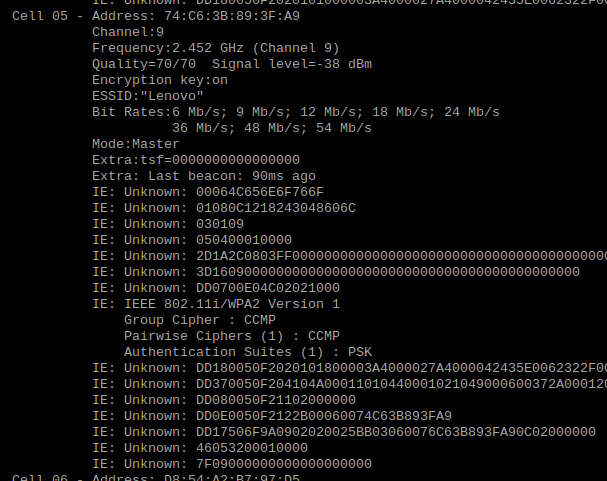
then get the sudo iwlist wlan0 scan

This is to check if the connection is valid

Then in the official document is kind of hard coding it

with sudo nano /etc/wpa_supplicant/wpa_supplicant.conf will edit the .config file

or the automatic way used in the video is sudo wpa_passphrase “SSID" “password"| sudo tee -a etc/wpa_supplicant/wpa_supplicant.conf

(also written in the document)
the video editted the conf file to hide the password, I skipped this step.
then the last step is to get the ip address
with  sudo wpa_cli -i wlan0 reconfigure and then ifconfig wlan0
now the ip address will be shown
Then just open a new session on PuTTy, when the login shows up, succeed!

RealSense learning/turtorial/sharing blog – Chapter Five: Measuring

The math of the distance between two points is really easy, just square(x^2 +y^2 +z^2)

but how to implement it into the program and let it show on a GUI, then combine with GIS platform is the task

So the first step is to get the x,y,z of the two ends:

from x,y in the picture to x,y,z in 3D world

The realsense library has pixel to point, and point to pixel, the function I use is pixel to point

rs.rs2_deproject_pixel_to_point

this takes three instances, intrinsic, (x,y), and distance

it’s calculation is simply use the dimension from intrinsic and calculate it into meter, therefor the input of intrinsic will be color, because we base on the color image x,y as point

the distance from camera will be defined from another function: depth_frame.get_distance(x,y)

and the output will be x,y,z

    def calculate_distance(self, x, y):
        color_intrin = self.color_intrin
        ix, iy = self.ix, self.iy
        udist = self.depth_frame.get_distance(ix, iy)
        vdist = self.depth_frame.get_distance(x, y)
        # print udist,vdist

        point1 = rs.rs2_deproject_pixel_to_point(color_intrin, [ix, iy], udist)
        point2 = rs.rs2_deproject_pixel_to_point(color_intrin, [x, y], vdist)
        # print str(point1)+str(point2)

        dist = math.sqrt(
            math.pow(point1[0] – point2[0], 2) + math.pow(point1[1] – point2[1], 2) + math.pow(
                point1[2] – point2[2], 2))
        # print ‘distance: ‘+ str(dist)
        return dist

—————————————————————————————————————-

For GUI there was two options: matplotlib and opencv

ealier this year I first start with the widget Ruler in matplotlib, and it seems fine

I editted this widget from simply measure pixels to real distance.

at the same time, the bag file recorded by the camera contains multiple frames, so a video mode is also possible, but with openCV.

At first it was setted at Arcgis hyperlink, with different layers, this month I updated it to a combined version, which is the video at the start.

the measure in opencv is a bit different than the matplotlib:

pt1, pt2 = (self.ix, self.iy), (x, y)
ans = self.calculate_distance(x, y)
cv2.line(img, pt1=pt1, pt2=pt2, color=(0, 0, 230), thickness=3)
cv2.rectangle(img, rec1, rec2, (255, 255, 255), -1)
cv2.putText(img, text, bottomLeftCornerOfText, font, fontScale, fontColor, lineType)

to show the distance

I designed multie-measure record rather than just one result in the matplotlib

so when we measure the width of a road, the borderline can be first drawn and then more measurements for a more accuate result.

the final result accuacy is within 10 cm

The functions are:
left click will set the start point, hold to get updated distance, when letgo it will set the line and the distance on the screen.
with a simple right click, the canvas is cleaned, shoing original photo
————————————————————————————————————————–
In Arcgis the input will be
import subprocess
def OpenLink (  [jpg_path] ):
  bag = [jpg_path]

  comnd = ‘python command.py -p {}’.format(bag)
  subprocess.call(comnd)
  return

first call another thread to prevent crash of the main thread of GIS, prevent data loss
then the jpg path contains road number and frame number and the path

so with simply one click the image can be shown.

because matching depth takes a bit more time, and is not always needed, so I designed to have a faster view of a road, and open the measure mode extra while needed
————————————————————————————————————————-

The current integration of Realsense and ArcGIS is almost done, good for user I would say.

I created record script, export shapefile and jpg, hyperlink measure GUI three big parts for this camera project.

RealSense learning/turtorial/sharing blog – Chapter Four: Frame Issues

What is the next step after getting the frames?

while examining the collected data, there are some issues needed to be fixed, and this post will focus on this part
The visualization will use openCV and the example file will be:
In the last part, we got the frames at this step
poll_for_frames()
Will send back None value is the image is not matched
adding:
if not depth_frame or not color_frame:
continue
will prevent error while running
wait_for_frames()
it will automatically pair frames with order, not timestamp or index
So when I record the file with long gap in time, the paring is not correct
try_wait_for_frames
it can set one time limit for wait_for_frames
So, now is the main issue I mention for this chapter
the wait for frames will pair each as the color shown
It will match first 243 / 274, then 243 / 301, 270 / 301, 302 / 306, 302 / 333, and so on
So when I have one frame gap with few seconds, the content of Color and Depth will be very different if I use wait_for_frames
timestamp
Frame number
Fream number
timestamp
402204.595
Depth243
Color 274
402204.221
403104.714
Depth 270
Color 301
403104.941
404171.521
Depth 302
Color306
403271.741
406038.434
Depth359
Color333
404172.461
407305.267
Depth 397
Color 389
406040.621
407338.605
Depth398
Color 427
407308.301
408038.697
Depth419
Color 449
408042.221
409238.855
Depth 455
Color 485
409243.181
409938.947
Depth476
Color 506
409943.741
410705.715
Depth 499
Color 529
410711.021
How did I try to fix it?
I recorded the frame number, and match wait_for_frame with it,
that means, first I wait for Depth frame number 243, if the Color frame number is 274, it shows
if not, it will search until it founds it (so sometimes when the frame is drop, it will stuck)
This takes a bit longer to run when the bag file is big, but at least accurate.
After the first one, it will search for Depth 270 and Color 301
as automatically it will get 243 / 301 next, I take the 301 and then wait for frame and get 270, skip one frame
but when it happens at 302/301, I want to get 302/306, but it will straight go to 359 /306, I have to make the whole file run to the end, and start from the beginning again.
This takes some time if the file is big, not so satisfying but its working for now.

RealSense learning/turtorial/sharing blog – Chapter Three: Frame control

In the last post we finished the adjustments of the camera

This part will work on the frames. getting the frames is the first step of the data

Explaining the content of the frame class and its instinces

The start is with setting up a pipeline


frames = pipeline.wait_for_frames() #wait until the next frame is ready

frames = pipeline.poll_for_frames() #get immediately a frame
These possibilities, we got a frame, what next?
The first thing would be align the two streams, because the depth and RGB camera have slightly difference on their view, depth is slightly bigger

And why not align it automatically? As dordinic answered in one issue, when 3D processing point cloud would be more color align to depth, while like in my case image comparison is using depth align to color, so the user can decide

align_to = rs.stream.color # or also depth
align = rs.align(align_to)
aligned_frames = align.process(frames)
This is the code to simply align them, just need to enable stream at the configuration

So after the frame got, now separate them
depth_frame = frame.get_depth_frame()
color_frame = frame.get_color_frame()
first_or_default
first
size
foreach
__getitem__
get_depth_frame
I only used these two so far
get_color_frame
get_infrared_frame
get_pose_frame
__iter__
“Size" “__getitem__"
So within the pipeline started the try with while loop will work for continuous streaming
Filters
So in the viewer the postprocessing can applie filters, also in here we need it, and for measuring, most important is the hole filling filter for me


The code of the options in the Viewer can be used in the code like this:
the structure is define a filter, and then process the frame

    dec = rs.decimation_filter(1) # define a filter
    to_dasparity = rs.disparity_transform(True)
    dasparity_to = rs.disparity_transform(False)
    spat = rs.spatial_filter()
spat.set_option(RS2_OPTION_HOLES_FILL, 5)
    hole = rs.hole_filling_filter(2)
    temp = rs.temporal_filter()
            depth = dec.process(depth_frame) #process the frame
            depth_dis = to_dasparity.process(depth)
            depth_spat = spat.process(depth_dis)
            depth_temp = temp.process(depth_spat)
            depth_hole = hole.process(depth_temp)
            depth_final = dasparity_to.process(depth_hole)

I translated the process in the rs.measure example
The hole processing is actually done under the spatial filter
Visualization
So after the basic data is ready the preparation for visualizing will first colorize the depth frame
depth_color_frame = rs.colorizer().colorize(depth_frame)
The color scheme can be also decided in the option of colorizer
depth_color_image = np.asanyarray(depth_color_frame.get_data())
color_image = np.asanyarray(color_frame.get_data())
Then is turn the frames into numpy arrays

OpenCV visualization
color_cvt = cv2.cvtColor(color_image,cv2.COLOR_RGB2BGR)    #convert color to correct
cv2.namedWindow(“Color Stream", cv2.WINDOW_AUTOSIZE)
cv2.imshow(“Color Stream",color_image)
cv2.imshow(“Depth Stream", depth_color_image)
            key = cv2.waitKey(1)
            # if pressed escape exit program
            if key == 27:
            cv2.destroyAllWindows()
            Break
As I mentioned before, opencv has BGR as defualt, so RGB must be first transformed to BGR to get the right color
With matplotlib it is also easy,
from matplotlib import pyplot as plt
 plt.imshow(img_over)
plt.show()
And it is done
Until here is the basic get frames and visualize, the basis of all future use and application.